Native Windows engine
OMNI uses the same CopyFileEx API that Windows is built on. Files of 64 MB and up skip the system cache, so a huge video doesn’t fill your RAM and the data goes straight to the drive instead of waiting in memory.
OMNI Copier takes over Windows’ copy and paste. Press Ctrl C and Ctrl V in Explorer like you always do, and OMNI moves the files with a native high-speed engine. It shows you exactly what is happening and steps aside when it’s done.
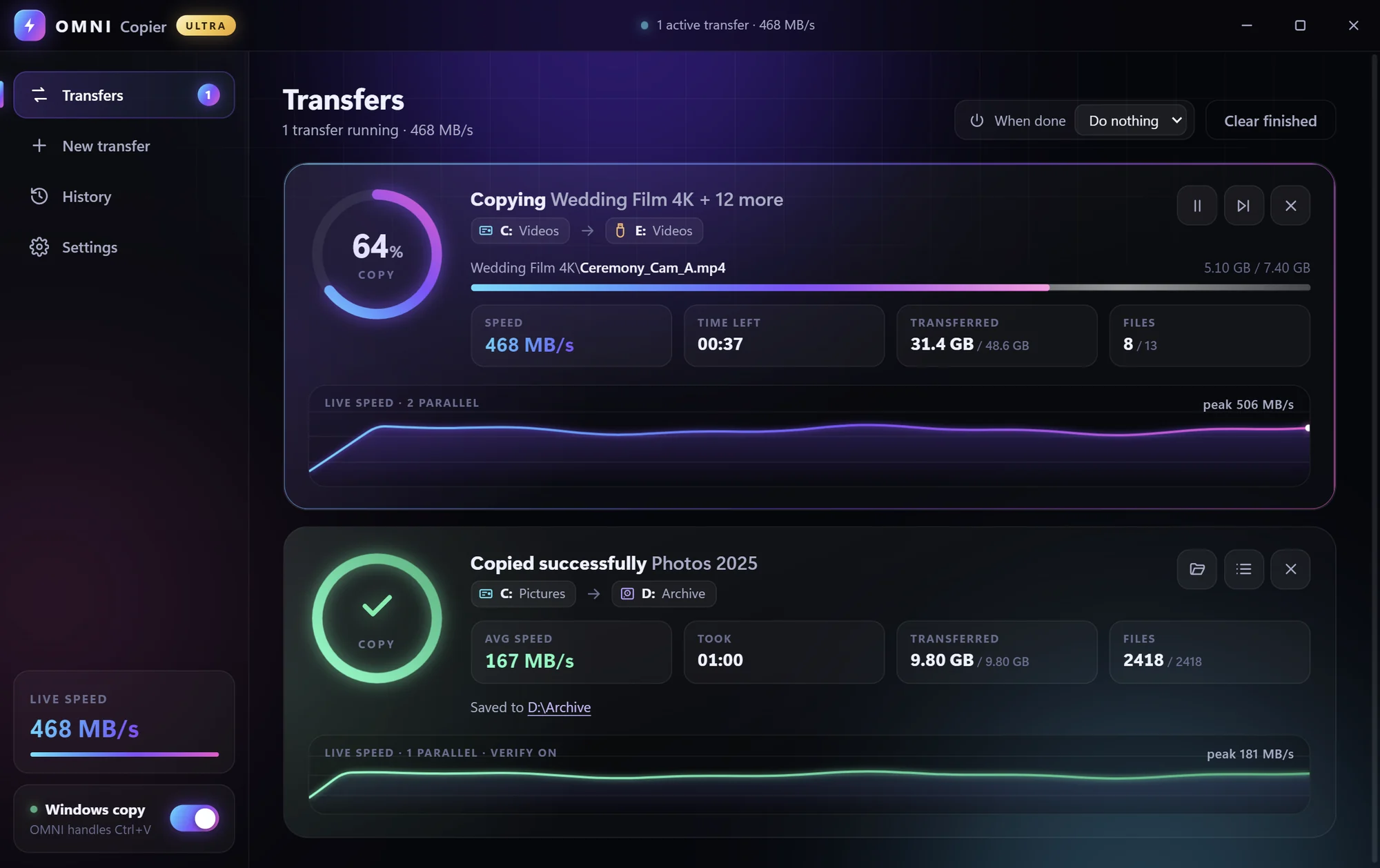
Install it once. After that you copy and paste exactly like before, and every paste just goes faster and smarter.
A 2 MB installer for your user account, no admin prompt. OMNI Copier starts with Windows and waits quietly in the tray.
Select files or folders in Explorer and press Ctrl+C to copy or Ctrl+X to move. Nothing changes here.
Press Ctrl+V in any folder or on the desktop. OMNI takes over, shows live speed and time left, then hides itself when the job is done.
Everything the Windows copy dialog does, plus the things you always wished it did.
OMNI uses the same CopyFileEx API that Windows is built on. Files of 64 MB and up skip the system cache, so a huge video doesn’t fill your RAM and the data goes straight to the drive instead of waiting in memory.
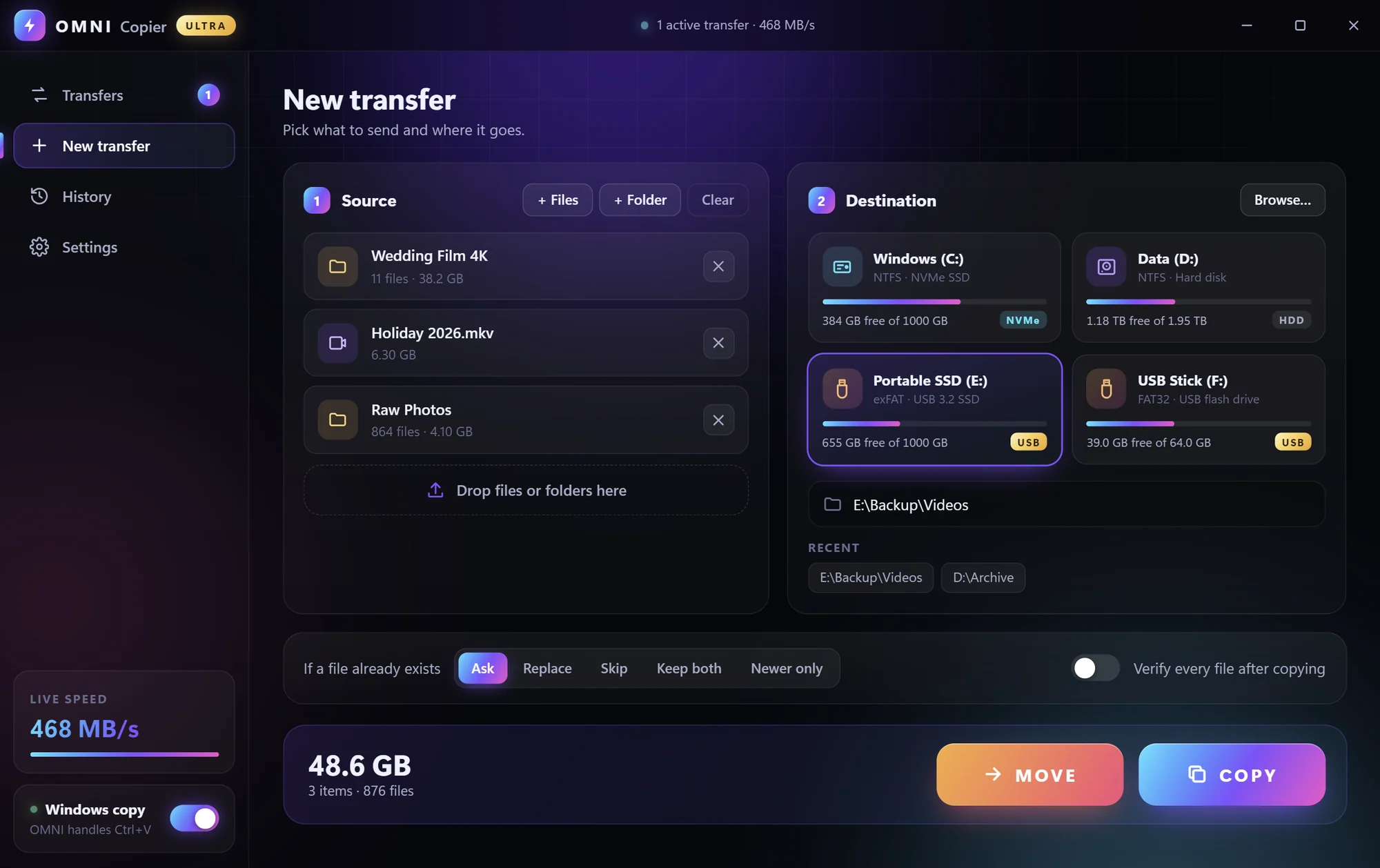
Photo libraries and projects copy several files at once, tuned per drive: 6 streams on SSDs, 2 on USB sticks, 1 on hard disks, 8 on network shares.
Moving on the same drive is just a rename. Even a 100 GB folder is done in a blink.
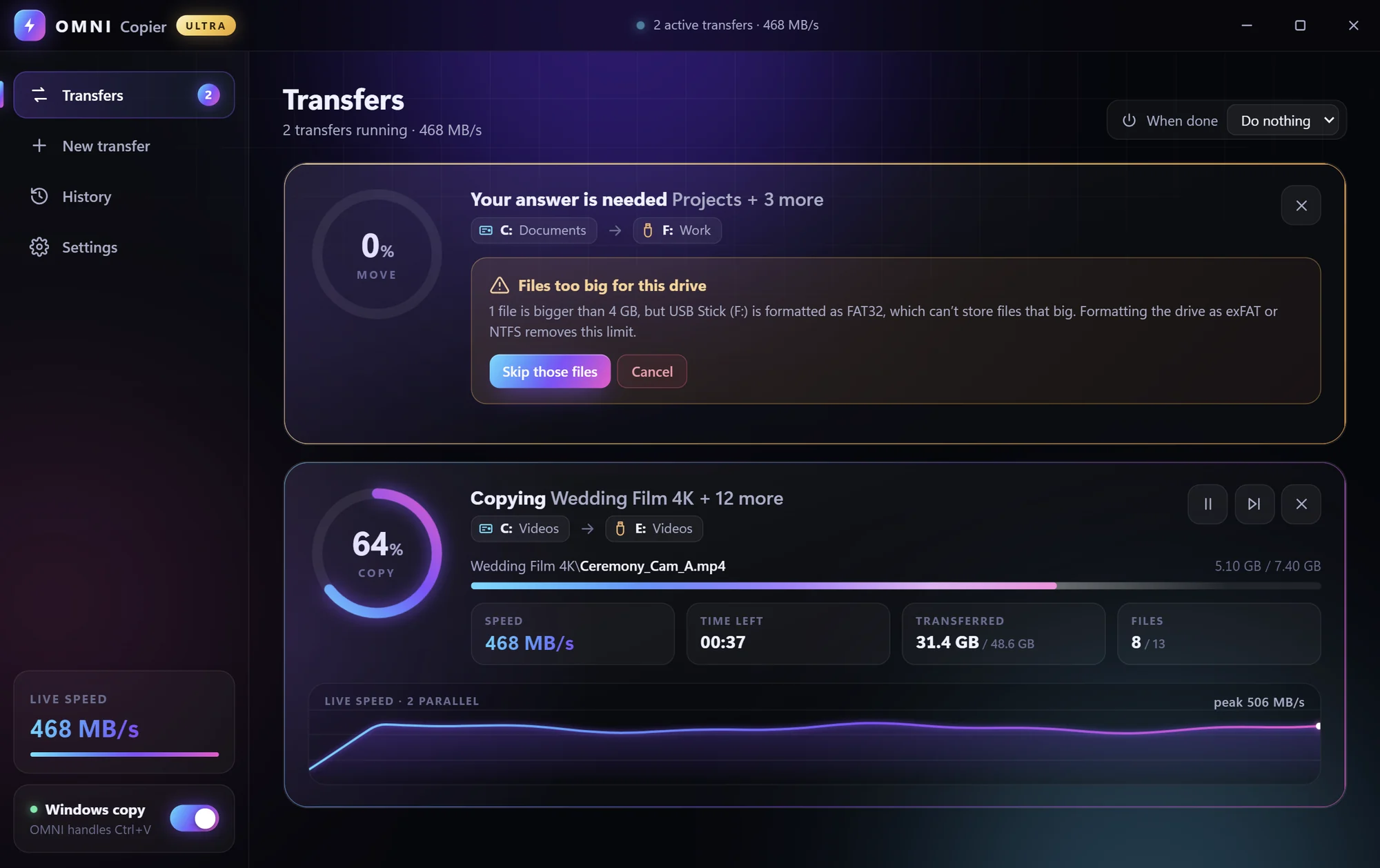
Before copying, OMNI checks free space and warns you when a FAT32 stick can’t hold files over 4 GB, instead of failing halfway.
New transfers to a busy drive wait their turn automatically. Disks are fastest when they do one thing at a time.
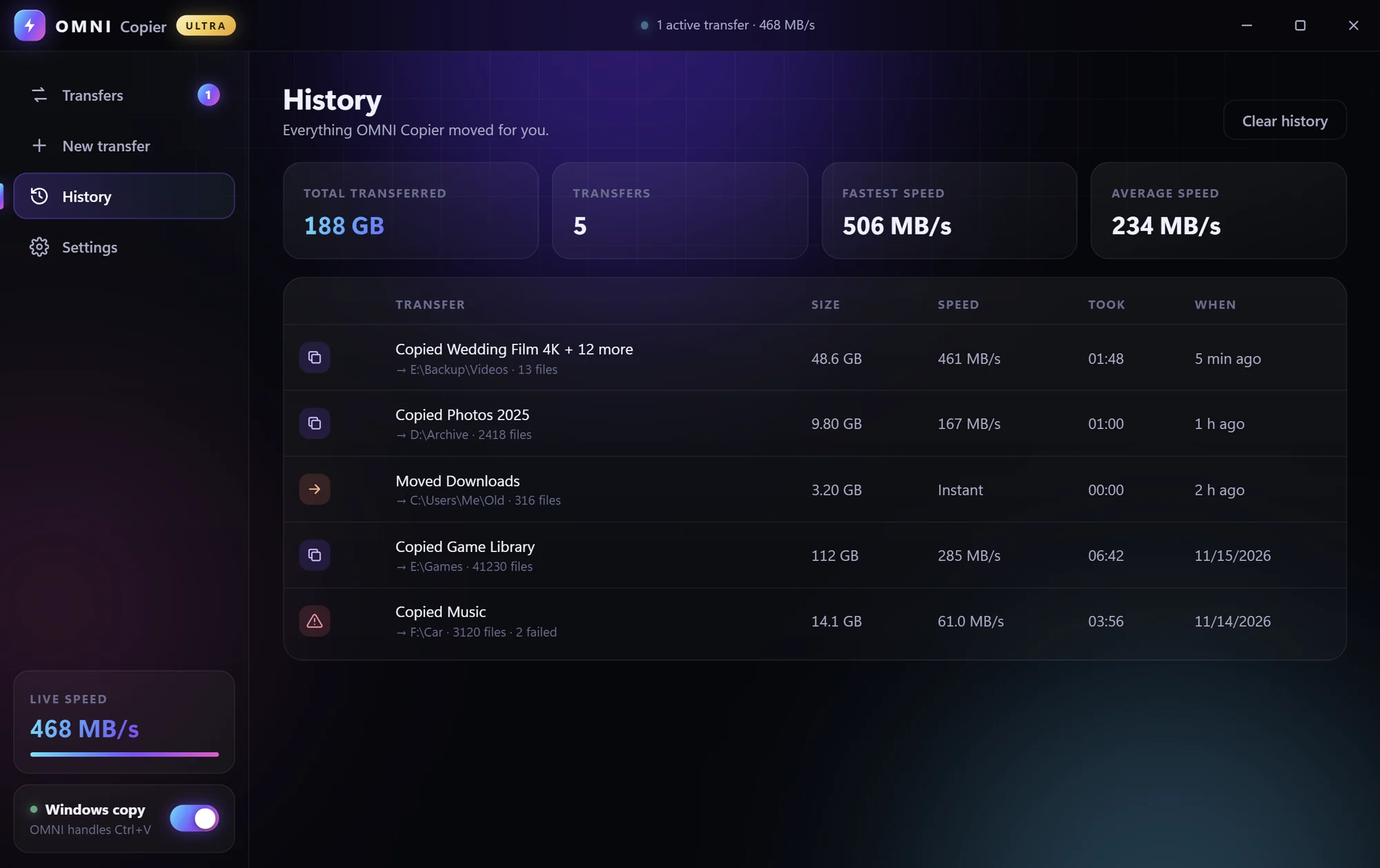
A progress ring, the current file, time left and a live speed graph for every transfer. Afterwards, History shows the size, average speed and time of each job.
Pause any time, skip one stubborn file, and retry only the files that failed. A cancelled copy can carry on later.
Optionally reads both files back and compares them byte for byte before a move removes the original.
Start a big backup at night and let the PC sleep or shut down once every transfer has finished.
“OMNI Paste here”, “OMNI Copy to…” and “OMNI Move to…” with a drive picker that shows USB, NVMe and hard disks at a glance.
New versions download in the background and install only when no transfer is running. Every update is cryptographically signed.
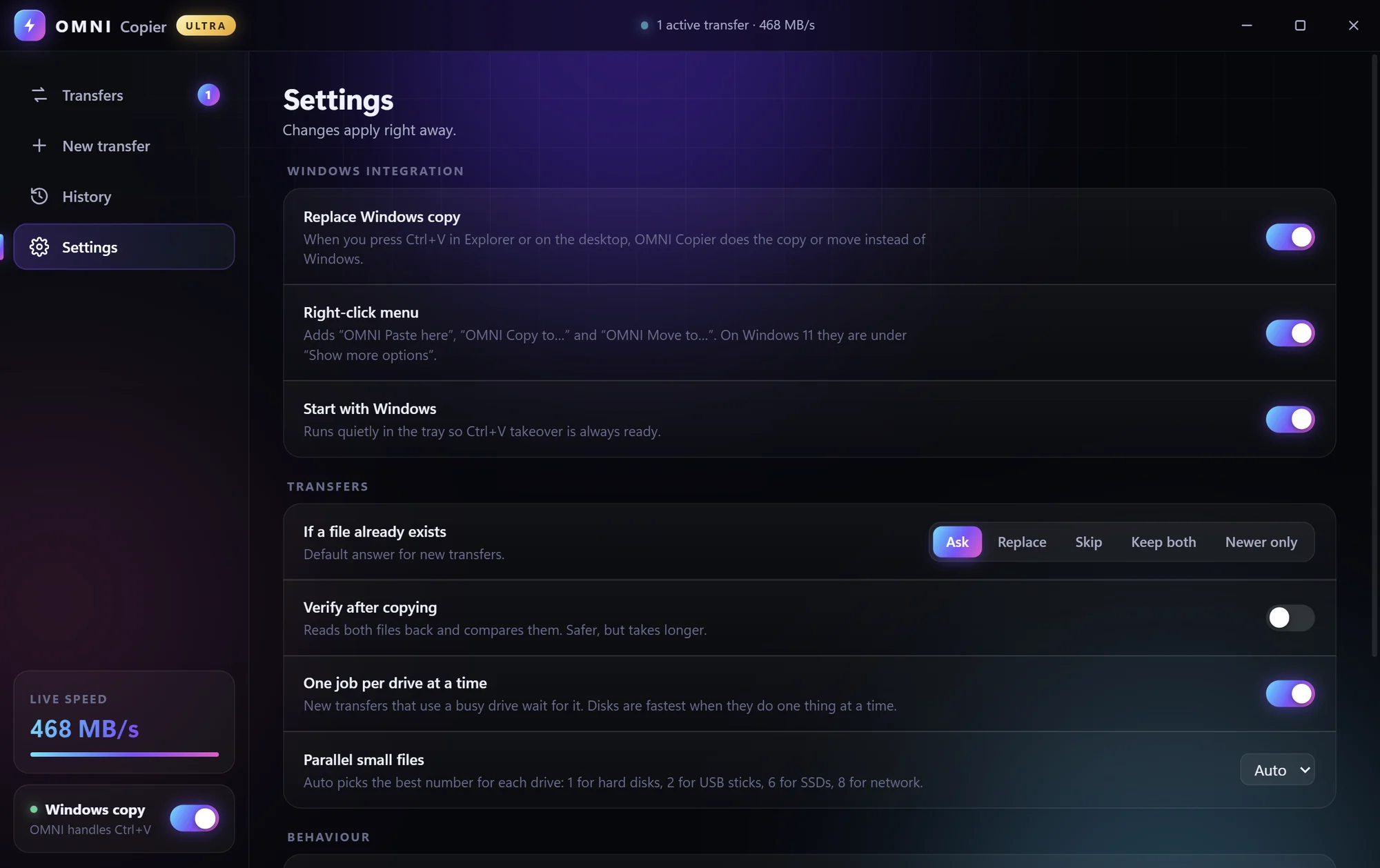
Yes, for Ctrl+V in Explorer and on the desktop, and for its own right-click entries. When the file list has focus and the clipboard holds files, OMNI Copier does the paste. Copy (Ctrl+C) and cut (Ctrl+X) both work. Dragging files between windows and Windows’ own right-click “Paste” still use the normal Windows copy.
It gives it straight back to Windows. Folders that need admin rights, phones, zip folders and other special places are pasted by Windows exactly as before, so a paste never gets lost.
A single big file is limited by your disk, and OMNI runs it at full disk speed without filling the memory cache. The big wins are many small files (copied in parallel), moves on the same drive (instant), and several jobs to one drive (queued instead of fighting each other). On our NVMe test drive OMNI copied 5.45 GB in 4.5 seconds.
The installer isn’t code-signed yet, so SmartScreen doesn’t know it. Click More info, then Run anyway. Updates are signed, and OMNI Copier only installs an update that carries our signature.
Right-click the tray icon and untick “Replace Windows copy (Ctrl+V)”, or use the switch in Settings. To remove it completely, go to Windows Settings → Apps → Installed apps → OMNI Copier → Uninstall. That also removes the right-click entries and the startup entry.
OMNI Copier checks this site shortly after starting and every few hours. It downloads a new version in the background and installs it only when no transfer is running, then comes back the way it was, in the tray or with its window open.
Only the update check: a request for the latest version number from omc.s-ai.live. No account, no analytics, no file names, and no data about what you copy. See the privacy page.
Windows 10 or 11 (64-bit). The app uses Microsoft Edge WebView2 for its window, which Windows 11 already has; on Windows 10 the installer adds it if it’s missing.
Install once, then just press Ctrl+V.
Download OMNI Copierv1.1 · 2.3 MB · 2026SHA-256 -